How to Give Claude Real-Time Web Access With the Decodo MCP
Learn how to connect Claude to the web with zero integration code

If you’ve spent serious time scraping, you know the real work isn’t parsing HTML: it’s surviving Cloudflare, rotating proxies, handling CAPTCHAs, and pretending to be a human long enough to get the data you need.
Now, since the rise of AI and LLMs, every office job has changed, with no exceptions for scraping professionals. For us, this means that surviving anti-bots and CAPTCHAs has become the first challenge when creating scraping pipelines. The second challenge has become the integration of scraping services and capabilities into AI pipelines and AI agents. The reason for this shift is simple: your boss or your clients don’t just want the data anymore. They want it in real-time, structured, and often packed with some insights.
Until some months ago, these pipelines required a huge amount of custom code (and time!). Luckily for us, the major struggle lasted until MCPs were first released.
In this article, you’ll learn what MCP is, how the Decodo MCP server works, and how to integrate it with Claude Desktop. You’ll also learn how to use it with two hands-on examples.
Let’s get into it!
What is MCP?
The Model Context Protocol (MCP) is an open standard introduced by Anthropic that defines how AI models connect to external tools, data sources, and services. Before MCP, every integration between an AI model and an external system had to be built from scratch. MCP replaces all of the complexity behind the integration with a single, shared protocol.
Basically, the MCP protocol acts as a common language for models to connect with external tools, files, and systems. For example: do you need an AI assistant to pull a file from Google Drive, query a company database, and trigger an action in an internal app? That’s exactly the kind of job MCP is built to handle!
The practical upside is composability. Developers can mix and match several MCP servers into a single AI application without writing any integration code. So, after more than a year since its introduction in the AI industry, MCP has become the standard for integrating different services and applications into a single AI software.
What is Decodo MCP?
The Decodo MCP Server is a web scraping layer for AI agents. It connects MCP-compatible clients to Decodo’s Web Scraping API, enabling:
- Web scraping for LLMs and AI agents without managing infrastructure: It can scrape any website, including JavaScript-heavy pages, and get real-time data without handling proxy rotation, CAPTCHA solving, or anti-bot systems. It is specifically built for RAG pipelines, AI research agents, and automation flows.
- Structured outputs for LLM workflows: It allows you to retrieve the scraped data in Markdown (LLM-ready), JSON (for structured pipelines), and screenshots (for visual context).
As of now, the Decodo MCP server exposes the following tools:
- scrape_as_markdown: Scrapes any target URL, given a target URL via prompt. Returns results in Markdown.
- screenshot: Captures a screenshot of any webpage and returns it as a PNG image.
- google_search: Scrapes Google Search for a given query, and returns parsed results.
- google_ads: Scrapes Google Ads search results.
- google_lens: Scrapes Google Lens image search results.
- google_ai_mode: Scrapes Google AI Mode (Search with AI) results.
- google_travel_hotels: Scrapes Google Travel Hotels search results.
- amazon_search: Scrapes Amazon Search for a given query, and returns parsed results.
- amazon_product: Scrapes a given Amazon Product page.
- amazon_pricing: Scrapes Amazon Product pricing information.
- amazon_sellers: Scrapes Amazon Seller information.
- amazon_bestsellers: Scrapes Amazon Bestsellers list.
- walmart_search: Scrapes Walmart Search for a given query, and returns parsed results.
- walmart_product: Scrapes Walmart Product page.
- target_search: Scrapes Target Search for a given query, and returns parsed results.
- target_product: Scrapes Target Product page.
- tiktok_post: Scrapes a TikTok post URL.
- tiktok_shop_search: Scrapes TikTok Shop Search for a given query, and returns parsed results.
- tiktok_shop_product: Scrapes TikTok Shop Product page.
- tiktok_shop_url: Scrapes TikTok Shop page by URL.
- youtube_metadata: Scrapes YouTube video metadata.
- youtube_channel: Scrapes YouTube channel videos.
- youtube_subtitles: Scrapes YouTube video subtitles.
- youtube_search: Search YouTube videos.
- reddit_post: Scrapes a specific Reddit post.
- reddit_subreddit: Scrapes Reddit subreddit results.
- reddit_user: Scrapes a Reddit user profile and their posts and comments.
- bing_search: Scrapes Bing Search results.
- chatgpt: Search and interact with ChatGPT for AI-powered responses and conversations.
- perplexity: Search and interact with Perplexity for AI-powered responses and conversations.
NOTE: Decodo is currently onboarding its MCP server onto various platforms and marketplaces. At the moment of writing this article, it can be found on the Official MCP registry, Pulse MCP, Glama AI, mcp.so, and mcpmarket.com.
How To Integrate The Decodo MCP With Claude
The prerogative of MCPs is to integrate them with LLMs. The Decodo MCP server can be integrated with several services that leverage LLMs, like Claude and Cursor. In this paragraph, you will learn how to integrate it with Claude.
Requirements
To use the Decodo MCP, your system must satisfy the following requirements:
- Claude Desktop: To integrate the Decodo MCP server with Claude, you need Claude Desktop. If you don’t have it installed yet, you can download it from their website.
- Decodo account: Create an account at dashboard.decodo.com. With a free one, you have up to 2K free requests.
Scraping token: Get the basic authentication token. To get it, click on Web Scraping API > API playground:
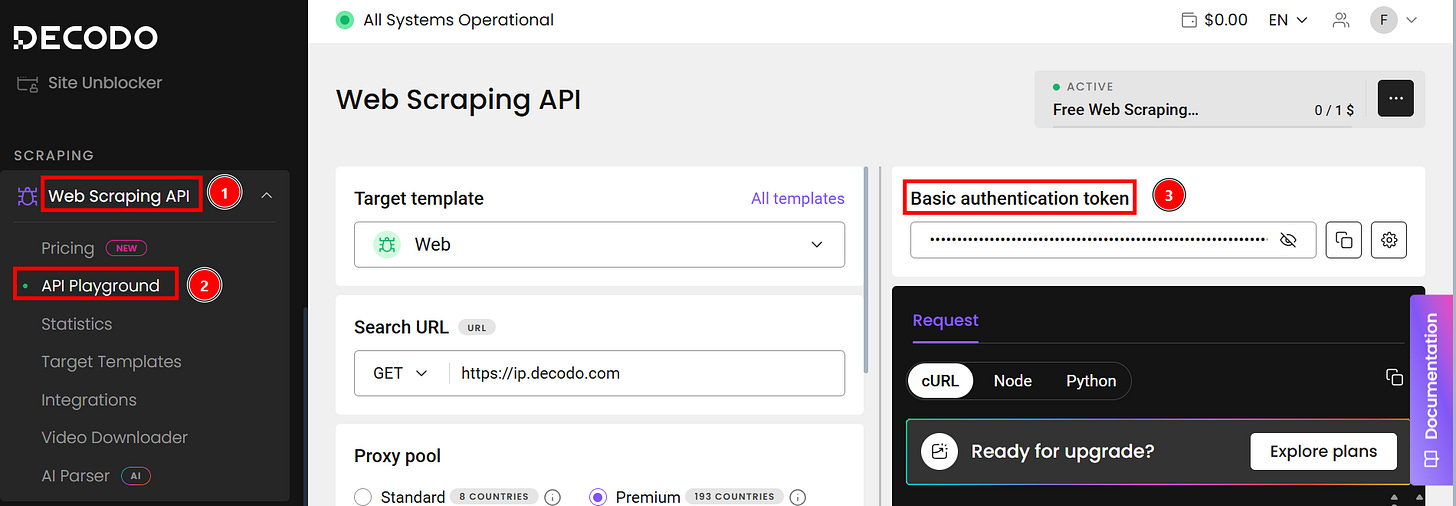
Good. Your system is set to connect Claude Desktop with the Decodo MCP server.
Connect The Decodo MCP Server to Claude
To connect the Decodo MCP server to Claude, open Claude Desktop and click on Settings:
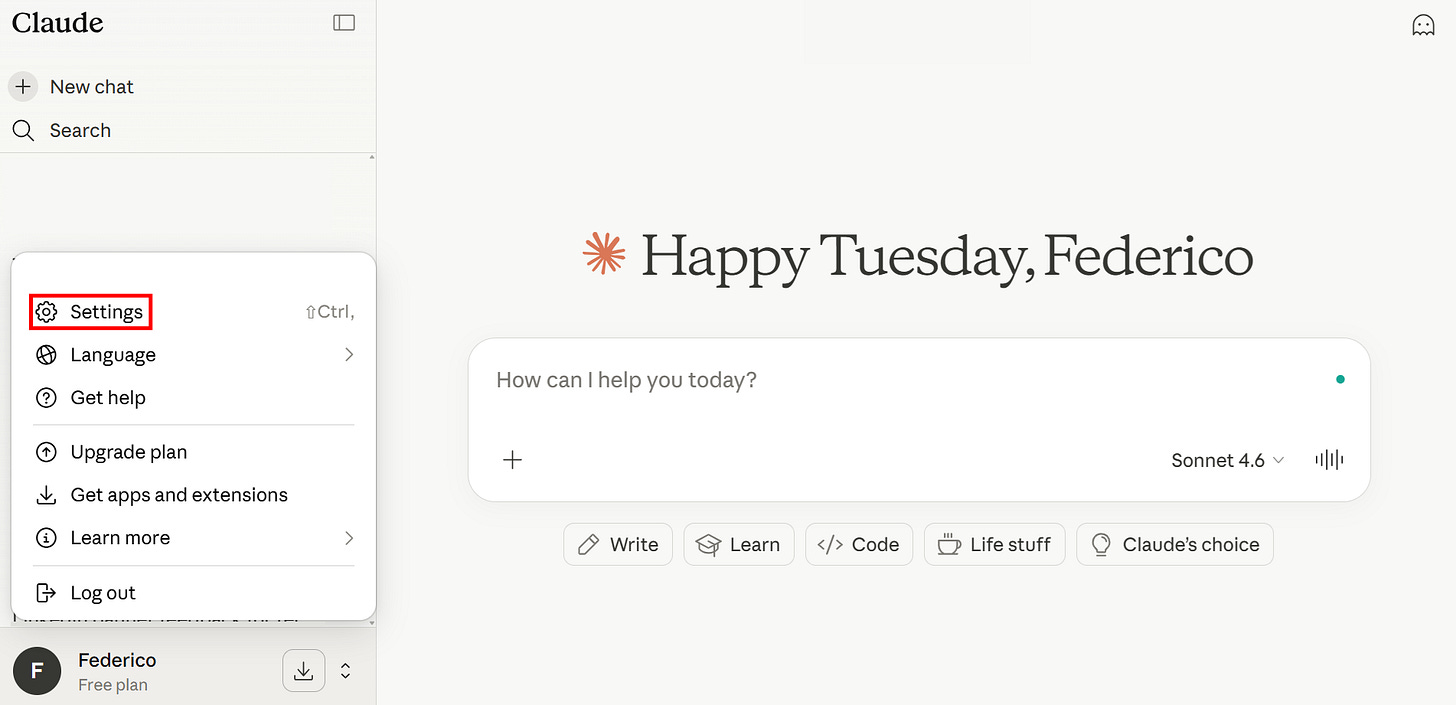
Then, click on Developer:
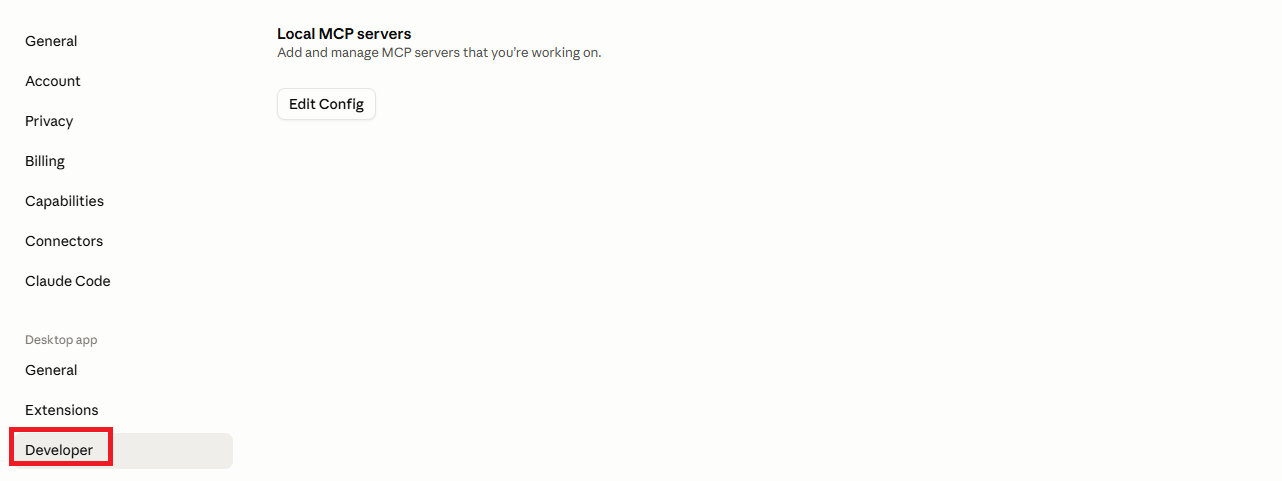
After clicking on Edit Config, the system will automatically open a folder where Claude stores all the configuration files on your local machine. Open the claude_desktop_config.json file and add the following to it:
"mcpServers": {
    "Decodo MCP Server": {
      "command": "npx",
      "args": [
        "-y",
        "@decodo/mcp-server"
      ],
      "env": {
        "SCRAPER_API_TOKEN": "<your-decodo-mcp-api-key>"
      }
    }
  }
Replace <your-decodo-mcp-api-key> with the basic authentication token you retrieved earlier from the Decodo dashboard, and the integration is done.
Quit Claude to make the changes effective. Note that just closing the Desktop window is not sufficient. You have to quit it:
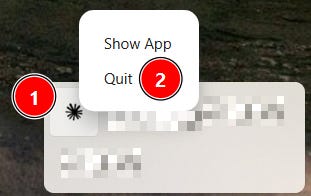
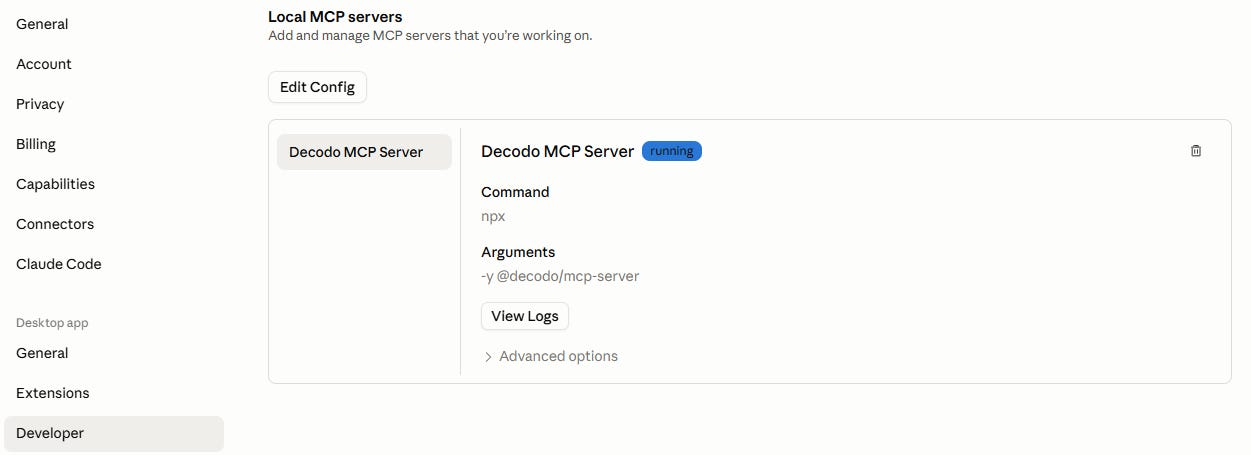
After that, when returning to Settings > Developer, you’ll see the MCP server up and running:
To be sure everything works fine, you can test it with a prompt similar to the following:
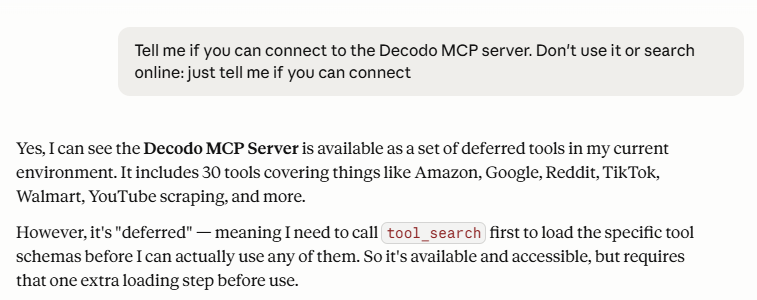
Alright, you successfully integrated the Decodo MCP server with Claude Desktop. Now it's time to test it!
Check the TWSC YouTube Channel
Running the Decodo MCP With Claude: Hands-On Examples
In this section, you will learn how to use the Decodo MCP server with two different examples:
- A basic usage taken from the documentation.
- A more advanced usage where you’ll ask Claude to retrieve some data from Amazon, returning the result in a JSON file.
Let’s get on to this!
Getting Started: Run a Google Search in Seconds
As a first and simple usage, you can test the google_search tool. The main idea behind this tool is to prompt the model with a query, and, under the hood, the MCP will use its Google search capabilities to return the result.
To just try things out, you can use the exact example reported in the Decodo MCP documentation to search for shoes on Google, reporting the top positions:
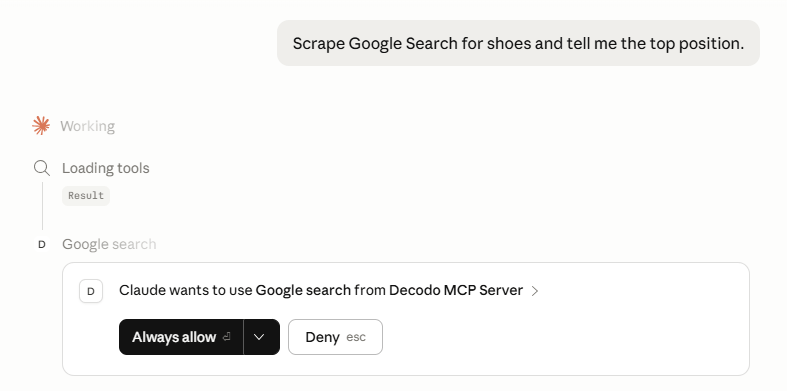
As you can see, Claude automatically tries to use the MCP server, loading its tool. As Claude is a production-ready LLM, you will be asked if you want to allow it to use the Google search from the Decodo MCP always or just for this call.
When Claude has completed its job, the result is the following:
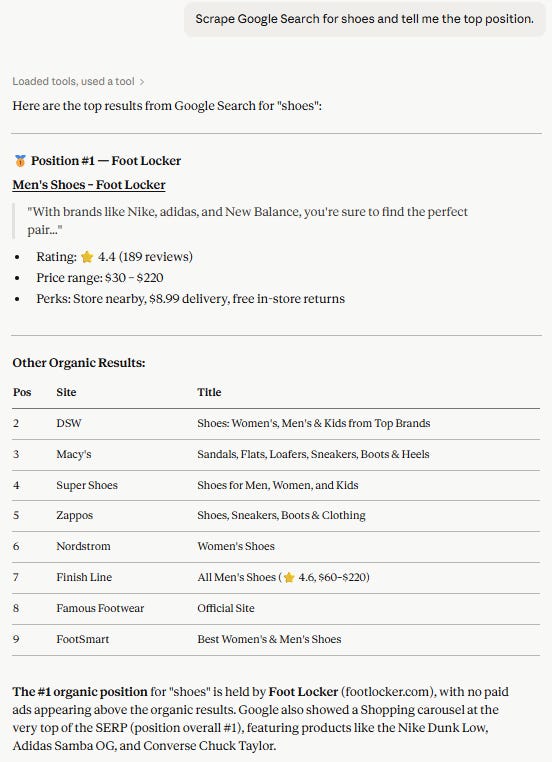
If you want to verify that the model hasn’t hallucinated, you can search for “shoes” on Google:
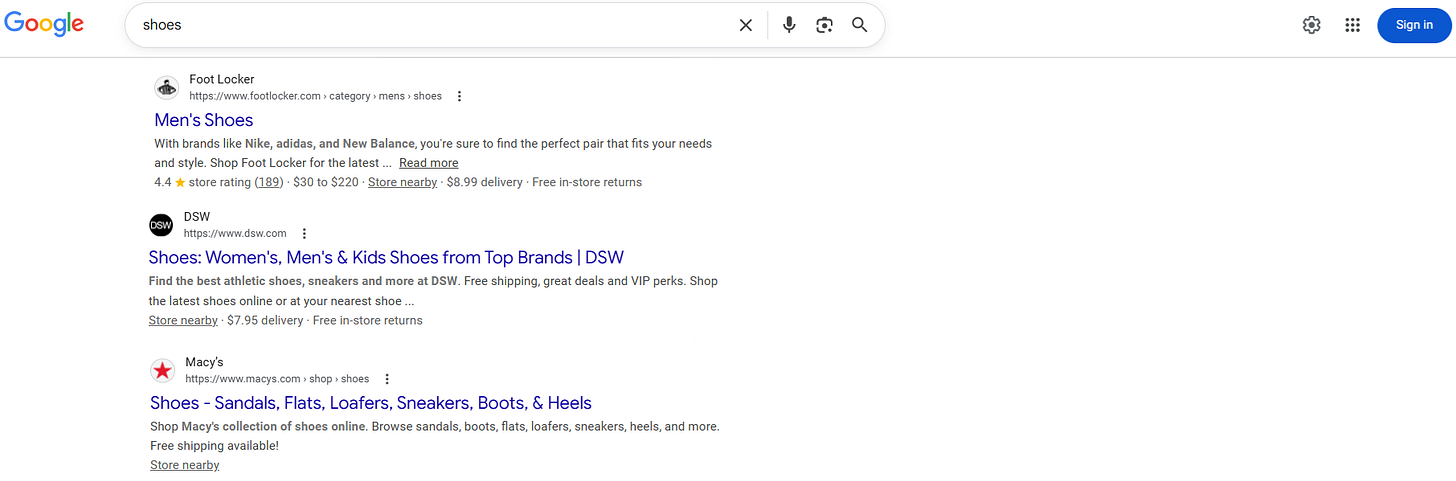
Alright! You made it to your first usage example.
Need help with your scraping project?
Leveling Up: Extracting JSON-structured Data From Amazon
Having results listed in a chat can be useful for a quick overview of web research. But the actual power of MCPs is to use the capabilities of the underlying tools for specific tasks that LLMs can solve.
An example is to ask the model to retrieve some data and report the results in a JSON file. This solution provides you with data that can be further used in the second part of your pipeline—for example, for analyzing your scraped data.
For this purpose, you can use the following prompt:
Get Amazon bestsellers in electronics, extract the main info and return it in JSON formatThe image below shows Amazon’s best sellers in electronics, at the time of writing this article:
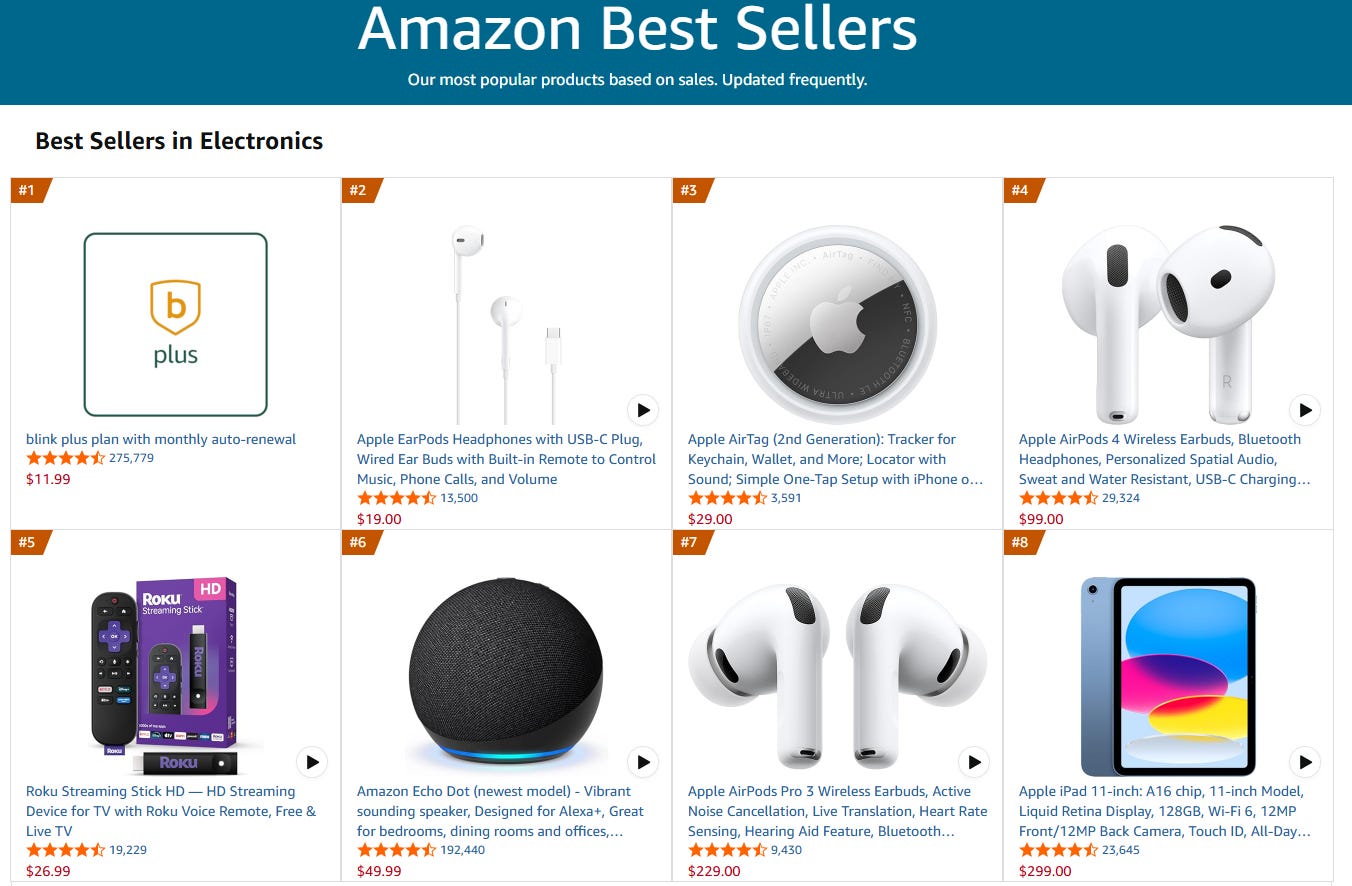
Under the hood, Claude will trigger the amazon_bestsellers tool and will search the data in electronics. The chat result is the following:
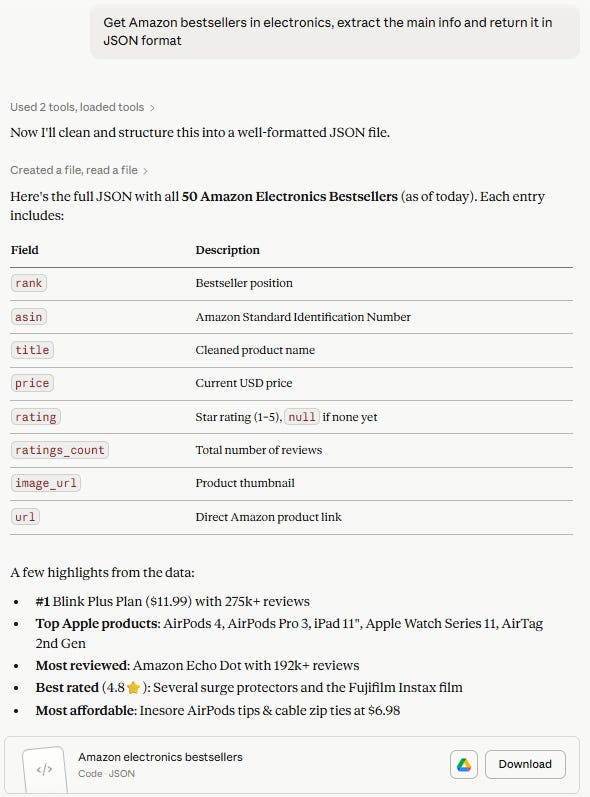
Below is the (partial) JSON returned by Claude:
{
  "metadata": {
    "category": "Electronics",
    "source": "Amazon Best Sellers",
    "url": "<https://www.amazon.com/Best-Sellers/zgbs/electronics/>",
    "scraped_at": "2026-05-18",
    "total_items": 50,
    "currency": "USD"
  },
  "bestsellers": [
    {
      "rank": 1,
      "asin": "B08JHCVHTY",
      "title": "Blink Plus Plan with Monthly Auto-Renewal",
      "price": 11.99,
      "rating": 4.4,
      "ratings_count": 275779,
      "image_url": "<https://images-na.ssl-images-amazon.com/images/I/31YHGbJsldL._AC_UL300_SR300,200_.png>",
      "url": "<https://www.amazon.com/Blink-Plus-Plan-monthly-auto-renewal/dp/B08JHCVHTY>"
    },
    {
      "rank": 2,
      "asin": "B0DCH8VDXF",
      "title": "Apple EarPods Headphones with USB-C Plug",
      "price": 19,
      "rating": 4.6,
      "ratings_count": 13500,
      "image_url": "<https://images-na.ssl-images-amazon.com/images/I/513OSdW4elL._AC_UL300_SR300,200_.jpg>",
      "url": "<https://www.amazon.com/Apple-EarPods-Headphones-Built-Control/dp/B0DCH8VDXF>"
    },

    <Omitted for brevity>

    }
  ]
}
As you can see, the first two items correspond to the first two in the image above, taken from the Amazon best seller page. This is just to be sure the model hasn’t hallucinated.
Well done! You learned how to use the Decodo MCP server with Claude.
Conclusion
In this article, you learned what MCP is and why it has become the standard for connecting AI models to external tools and services. You also learned what the Decodo MCP server is, how to integrate it with Claude Desktop, and how to use it in practice.
So, let us know: what kind of scraping workflows are you planning to build with the Decodo MCP?